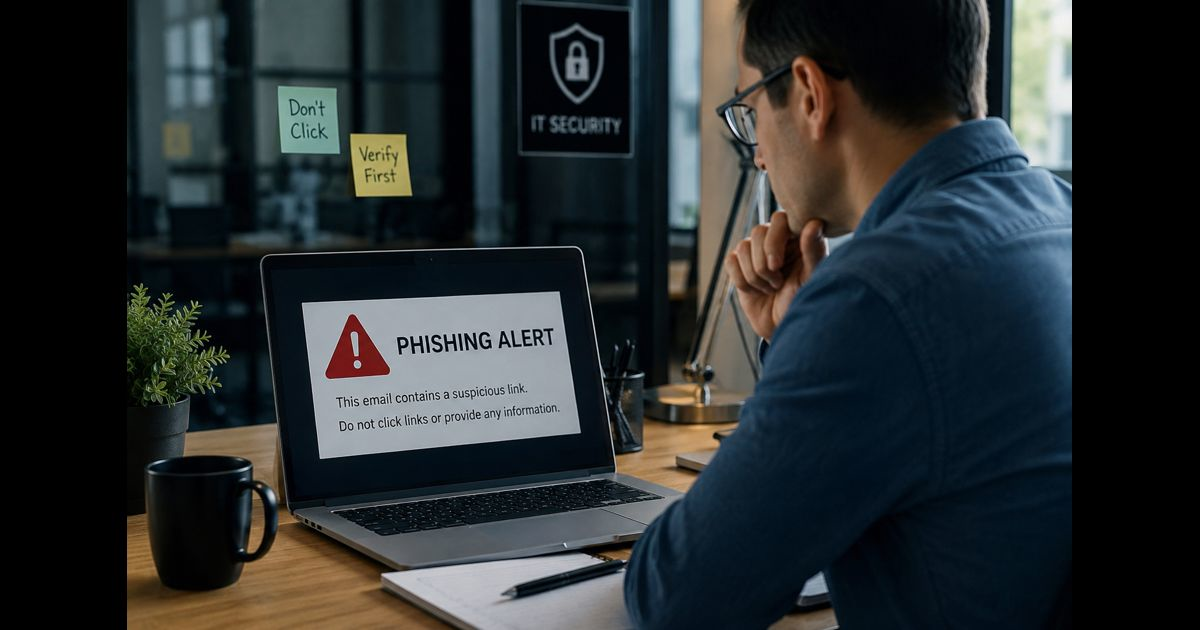
If you clicked a phishing link at work, stop interacting with the page and report the incident to your IT or security team immediately. Tell them when you clicked, which device and account you were using, and whether you entered a password, approved an MFA request, authorized an application, downloaded a file or shared information.
Do not revisit the link, delete the message, clear your browser history, forward the email to coworkers or attempt to investigate it yourself. If a file opened, a security warning appeared, the device began behaving unusually or you suspect malware is running, disconnect the device from Wi-Fi or Ethernet but leave it powered on unless your security team tells you otherwise.
Reporting quickly is more important than proving that the link was malicious. A false alarm is easier to resolve than an incident reported after an attacker has had time to use a stolen account.
The First Five Minutes
1. Stop interacting with the page
Close the phishing page without clicking buttons, accepting notifications, downloading software or entering additional information. Cancel any download that is visibly in progress, but do not open or delete a file that has already arrived.
Do not return to the page to take another look. Visiting it again could expose the device a second time, restart a download or give the attacker more information.
If the page is frozen, displaying repeated pop-ups or claiming that you must call technical support, do not call the displayed number. Contact your workplace support team through a phone number, help desk portal or communication channel you already know is legitimate.
2. Report the incident immediately
Use your organization’s approved phishing-reporting button, security hotline, help desk, service portal or another known reporting channel. If the work device appears compromised, use a different trusted device to contact the security team.
Include these details:
- Your name, department and contact information
- The sender’s address and message subject
- The approximate time you received and clicked the link
- The device you used
- The browser or application in which the link opened
- The page or prompt that appeared
- Whether anything downloaded or opened
- Every type of information you entered
- Any password, MFA prompt, QR code, device code or app permission involved
- Any unusual behavior noticed afterward
Be direct about what happened. Security teams make better decisions when they know the complete sequence rather than receiving a vague report that an email “looked suspicious.”
3. Preserve the message and other evidence
Keep the original email, chat message or text unless your organization’s reporting process automatically submits and removes it. Do not forward it casually because forwarding can strip technical information or expose another person to the malicious link.
Unless instructed otherwise:
- Do not delete downloaded files.
- Do not clear browser history or cookies.
- Do not empty the recycle bin.
- Do not reset or wipe the device.
- Do not run unapproved cleanup software.
- Do not shut down the computer.
Browser records, message headers, downloaded files, active processes and memory can help investigators determine what occurred. Deleting them may make the incident harder to contain.
4. Decide whether the device must be disconnected
Disconnect Wi-Fi or unplug Ethernet immediately if:
- You opened or ran a downloaded file.
- A security tool displayed a malware warning.
- Unexpected software launched.
- The pointer began moving without your control.
- New windows continued opening.
- The device became unusually slow or unresponsive.
- Files changed, disappeared or became inaccessible.
- You saw a ransomware message.
- The security team told you to isolate the device.
Leave the device powered on and call the security team from another device.
If the link only opened a webpage, nothing downloaded, you entered no information and the device is behaving normally, report the event and follow your organization’s instructions. Unnecessarily disconnecting every device can interrupt security monitoring or remote response. Company policy should take priority.
Take the Correct Action for What Happened
The response depends on what occurred after the click.
|
What happened |
Immediate response |
|
The page opened, but you entered nothing |
Close it, report it, preserve the message and follow IT instructions |
|
You entered a work password |
Report urgently and change it through the genuine service from a trusted device when instructed |
|
You entered a reused password |
Change it on the work account and every other account using it, beginning from a trusted device |
|
You approved an MFA notification |
Tell security explicitly; the attacker may already have an authenticated session |
|
You entered a device code or scanned a QR code |
Report it as possible account authorization, even if the page looked genuine |
|
You granted an application permission |
Tell security which permissions were shown and which account authorized them |
|
A file downloaded but was not opened |
Do not open or delete it; report its name and location |
|
A file or attachment was opened |
Disconnect the device, leave it powered on and call security |
|
You shared financial or personal information |
Notify security and the relevant finance, privacy, HR or banking contact |
|
You made or approved a payment |
Contact the finance team and financial institution immediately |
If you entered a password
Open the real service using a saved bookmark, trusted company portal or manually verified address. Never use the original message to reach the password-reset page.
Change the exposed password from a device considered safe by your organization. If the password was reused, replace it everywhere else it appears. Each account should receive a different password.
A password change may not end an attacker’s existing access. Tell the security team so it can revoke active sessions, invalidate tokens and inspect the account for unauthorized changes.
If you approved MFA, a device code or a sign-in request
Treat the account as potentially compromised even if you never typed a password into the phishing page.
Attackers can abuse:
- Push-notification approvals
- One-time verification codes
- Device-code sign-ins
- QR-code authentication
- Session cookies
- Previously authenticated browser sessions
State exactly what you approved. The security team may need to revoke sessions, reset registered authentication methods, block sign-in temporarily and review recent activity.
Do not approve later prompts claiming to verify or reverse the incident. Attackers sometimes continue sending requests after the first interaction.
If you authorized an application
Some phishing pages ask users to give an application access to email, files, contacts, calendars or other workplace data. The login page may be genuine, but the requested application may be malicious.
Changing the password alone may not remove this access. Report the application’s displayed name and any permissions you remember. Security administrators may need to revoke the application’s consent, remove related tokens and determine what information it accessed.
If a file downloaded or opened
Do not open a downloaded file to identify it. If it opened automatically or you launched it, isolate the device from the network and contact security immediately.
Do not connect a USB drive, copy files to cloud storage or create a fresh backup after suspected malware execution. These actions can move unsafe files elsewhere or change evidence needed for investigation.
The security team may scan, isolate or reimage the device. Continue using it only after the team confirms that it is safe.
If you shared confidential or financial information
Explain what was disclosed, not merely that “some information” was entered. Relevant details may include:
- Customer or employee records
- Payment-card or bank information
- Tax or identity information
- Internal documents
- Contract details
- Recovery codes
- Security questions
- Supplier payment instructions
Prompt reporting allows the correct teams to limit account access, contact affected parties, stop a payment or evaluate legal and notification obligations.
If money was sent, call the organization’s finance team and the financial institution using independently verified contact details. Payment recovery becomes more difficult as time passes.
Check for Account Changes Without Conducting Your Own Investigation
If the security team permits it, review the account through the genuine company portal. Report, but do not attempt to conceal or extensively modify, unfamiliar activity such as:
- Sign-ins from unknown locations or devices
- New MFA methods or recovery details
- Unexpected password-reset messages
- Email forwarding or inbox rules you did not create
- Messages sent from your account
- Deleted or moved email
- Unknown connected applications
- Changes to payroll or payment details
- New calendar invitations or shared files
- Coworkers receiving unusual requests from you
Use another trusted communication method to warn the security team if your email or chat account may be controlled by someone else.
What Not to Do After a Phishing Click
Do not hide the incident
A quick report may let security teams block the page, remove the message from other inboxes and stop account access. Waiting because you feel embarrassed gives the attacker more time.
The purpose of incident reporting is containment, not blame.
Do not forward the message to coworkers
Forwarding spreads the dangerous content and may cause additional clicks. Use the approved reporting function or send the information to the designated security address according to company policy.
Do not test the link on another device
Opening it on a personal phone, home computer or online analysis service creates another exposure. A workplace link may also contain a unique identifier or access token that should not be shared publicly.
Do not rely only on a password change
A password reset does not necessarily revoke browser sessions, authentication tokens, malicious application permissions or unfamiliar MFA methods. Security administrators must determine which access remains active.
Do not assume MFA prevented the attack
MFA improves protection, but an attacker may trick a user into approving a request, entering a code or authorizing a legitimate sign-in flow. Report every authentication action connected with the message.
Do not erase or factory-reset the device
Resetting a device can remove information investigators need and may not address compromised cloud accounts. Wait for authorized instructions.
What the Security Team May Do Next
After receiving the report, the security team may:
- Block the malicious domain, sender and related addresses
- Remove the message from other employee inboxes
- Identify other recipients and clicks
- Isolate the affected endpoint
- Examine browser, email, identity and network records
- Quarantine downloaded files
- Reset exposed credentials
- Revoke sessions and authentication tokens
- Review MFA and account-recovery methods
- Remove unauthorized application consent
- Inspect mailbox forwarding and inbox rules
- Check for unusual file, email or payment activity
- Determine whether protected information was accessed
- Notify legal, privacy, finance, HR or management teams when necessary
You may be asked to describe the sequence again. Provide facts you remember without guessing. Approximate times are useful when clearly identified as estimates.
A Short Report You Can Send to IT
Subject: Urgent phishing incident — link clicked
I clicked a link in a suspicious message at approximately [time] on [device]. The message appeared to come from [sender] and had the subject [subject].
After clicking, I saw [page, prompt or behavior]. I [did/did not] enter a password, approve MFA, enter a code, scan a QR code, grant app permissions, download or open a file, or share information.
The device is currently [connected/disconnected] and [is/is not] showing unusual behavior. I have kept the original message and have not revisited the link, deleted files, cleared browser data or reset the device.
Please advise me on the next action.
Frequently Asked Questions
Is clicking a phishing link enough to compromise a work account?
Not always. A click may lead only to a fake page, but it can also trigger a download, exploit a browser weakness, capture an authenticated session or start a fraudulent authorization process. Report the click so the security team can determine what occurred.
Should I change my password if I clicked but entered nothing?
Do not use the phishing page to change it. Report the incident first and follow workplace instructions. A password change becomes urgent if you entered credentials, approved authentication, reused the same password elsewhere or security finds suspicious account activity.
Should I disconnect my work computer from the internet?
Disconnect it if a file opened, malware is suspected, the device behaves abnormally or your security team instructs you to do so. If only a page opened and nothing else happened, report it immediately and follow company policy.
Should I delete the phishing email?
Keep it until the approved reporting process or security team tells you otherwise. The original message can contain information needed to identify the sender, malicious address and other recipients.
What if I clicked the link on my personal phone?
Report it if the message, account or information was work-related. Tell security whether the phone contains workplace email, authentication apps, company files or device-management software.
What if the phishing page looked like a real Microsoft or Google login?
Report any password, device code, MFA approval, QR scan or application permission you provided. Some attacks misuse legitimate authentication pages, so a genuine-looking address does not prove the authorization was safe.
Can I keep working while IT investigates?
Follow the security team’s instructions. Stop using the affected device if it was isolated, a file ran, unusual behavior appeared or an account may be controlled by an attacker. Moving to another device without guidance can spread the incident or expose more accounts.